qtrace CLI Reference
qtrace is the Quant0 command-line tool for connecting repositories to Quant0 and scanning codebases for cryptographic assets.
It can be used to:
- Sign in to your Quant0 account
- Connect a repository to a Quant0 organisation
- Check the current project and authentication state
- Scan a directory for cryptographic assets
- View connected repositories
- Generate scanner and knowledge-base information
- Remove the local qtrace installation
Usage
qtrace [command]
qtrace [flags]
Commands
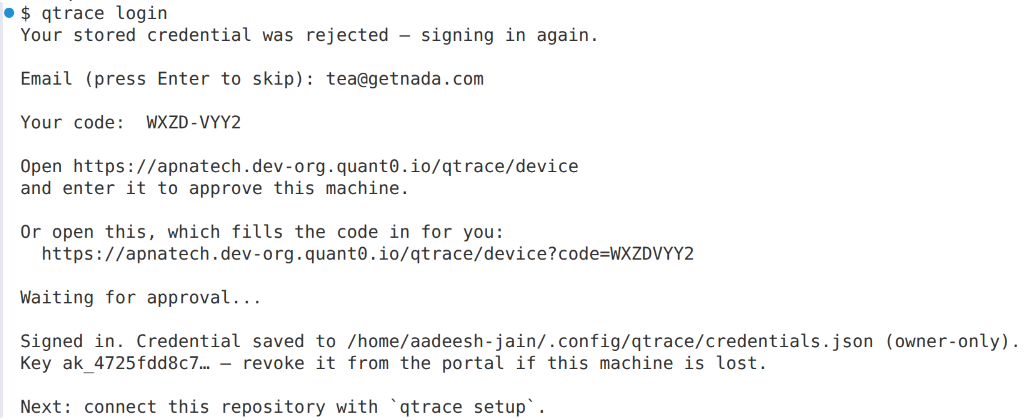
login
Sign in to your Quant0 account.
qtrace login
Use this command before connecting a repository or performing operations that require authentication.
setup
Connect the current repository to your Quant0 organisation.
qtrace setup
Run this command from the root directory of the repository you want to connect.
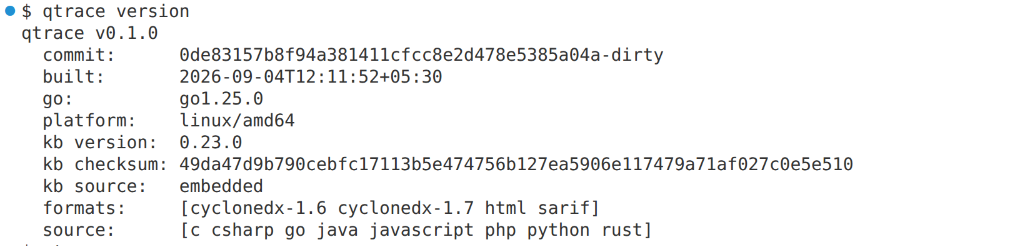
version
Print the installed qtrace scanner and knowledge-base versions.
qtrace version
This can be useful when reporting issues or verifying the installed scanner version.
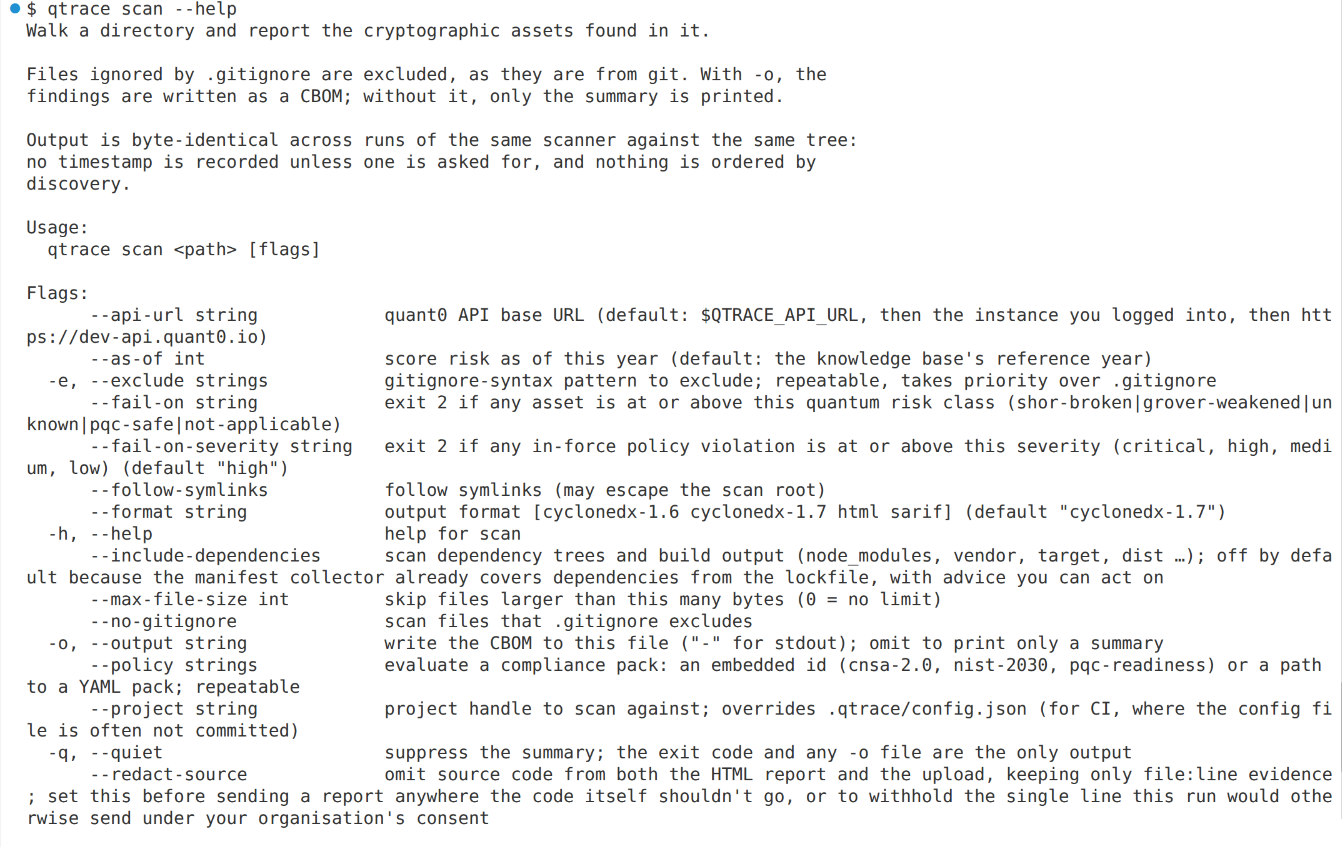
scan
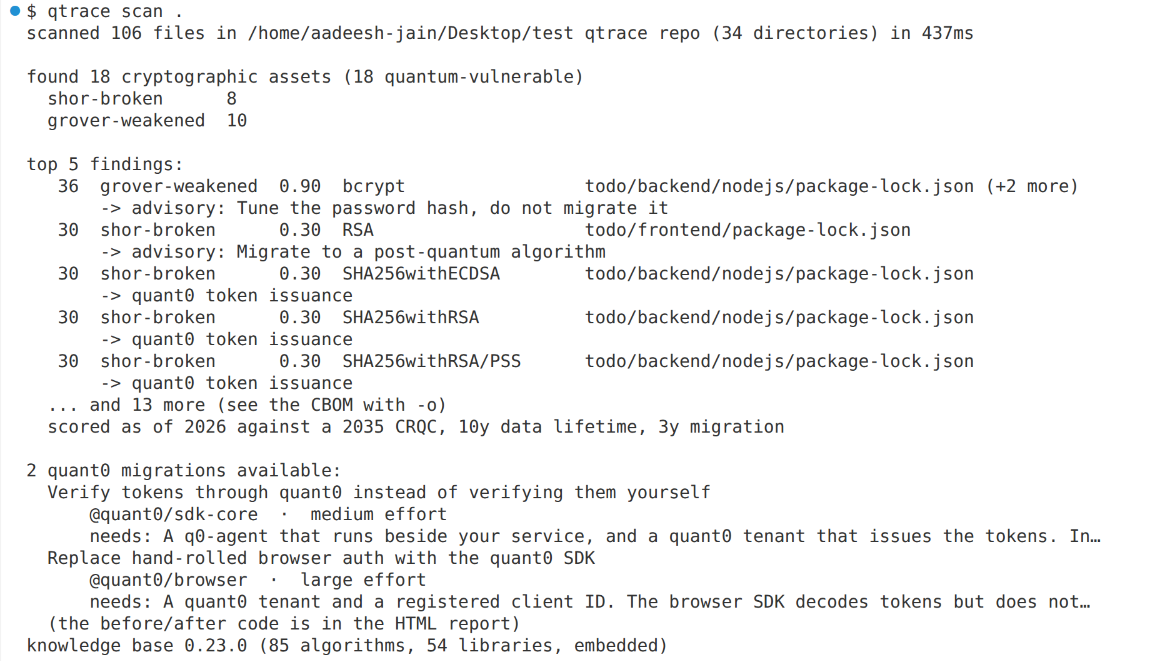
Scan a directory for cryptographic assets.
qtrace scan .
You can provide a specific directory:
qtrace scan /path/to/project
The scan identifies cryptographic assets in the codebase and classifies them based on their cryptographic security status.
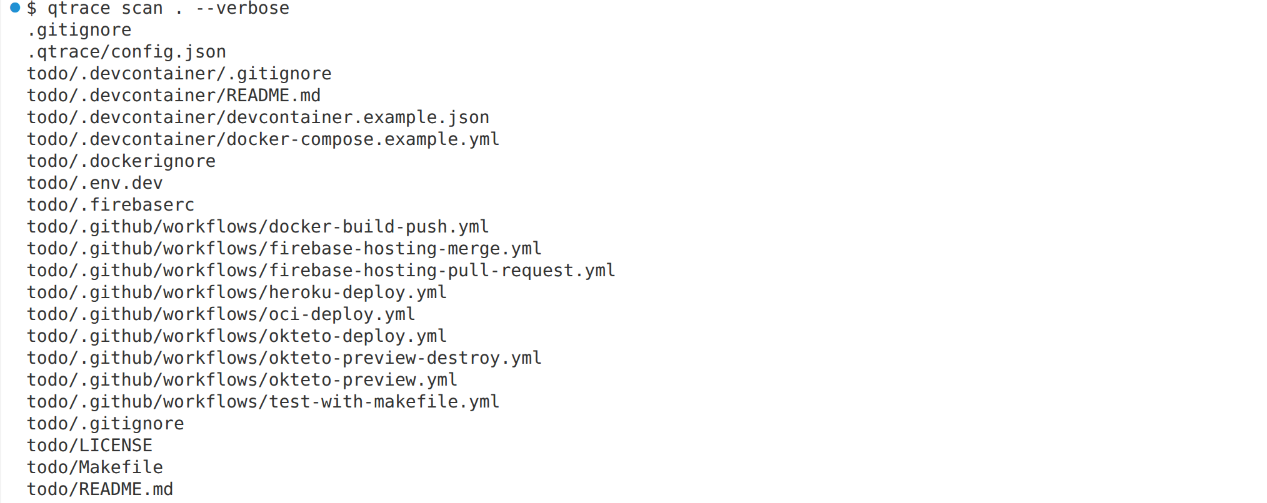
For additional per-file information, use the --verbose flag:
qtrace scan . --verbose
status
Show the Quant0 sign-in and project state for the current directory.
qtrace status
This is useful for checking whether:
- The machine is signed in
- The current repository is connected
- The repository has an active Quant0 project configuration

whoami
Show the Quant0 account currently signed in on the machine.
qtrace whoami
Use this to verify which Quant0 account is being used by the CLI.

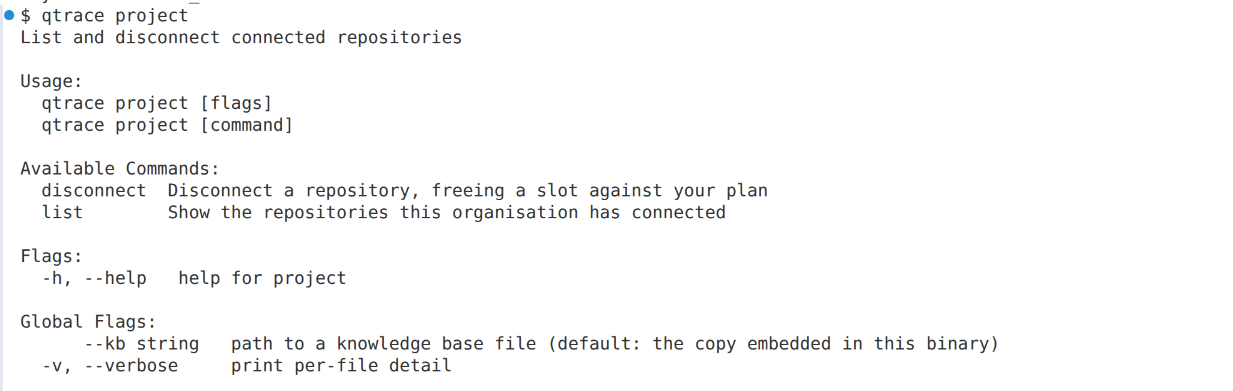
project
List and manage repositories connected to Quant0.
qtrace project
This command can be used to view connected repositories and disconnect repositories when required.
logout
Remove the stored Quant0 credentials from the current machine.
qtrace logout
Use this when you want to sign out of the Quant0 account associated with the machine.

uninstall
Remove qtrace from the current machine.
qtrace uninstall
Use this when qtrace is no longer required on the machine.

Global Flags
The following flags can be used with qtrace commands.
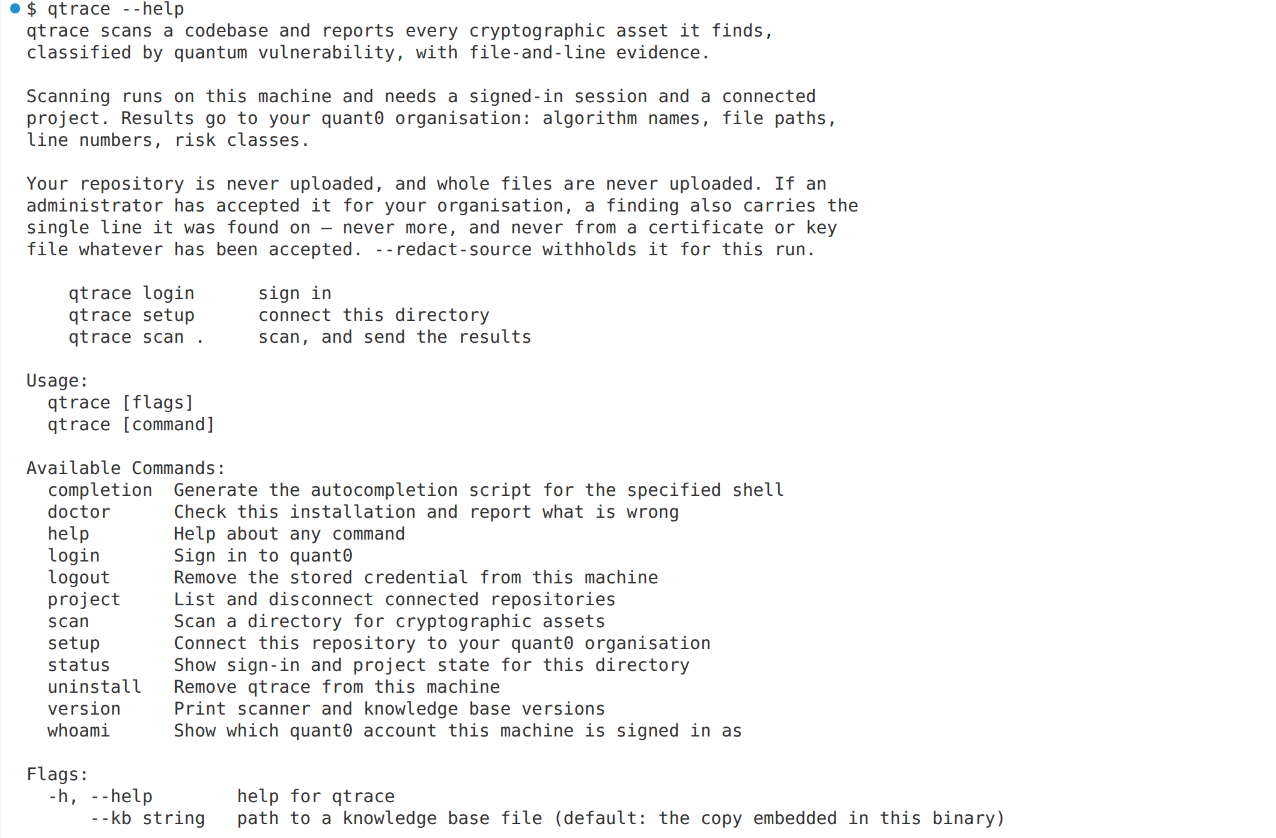
--help
Display help for qtrace or a specific command.
qtrace --help
For command-specific help:
qtrace scan --help
Common Workflow
A typical workflow for using qtrace with a repository is:
1. Sign in
qtrace login
2. Verify the signed-in account
qtrace whoami
3. Connect the repository
Run the following command from the repository root:
qtrace setup
4. Check project status
qtrace status
5. Scan the repository
qtrace scan .
For detailed scan output:
qtrace scan . --verbose
6. Review connected projects
qtrace project
Troubleshooting
If you encounter an issue with the qtrace installation or configuration, start with:
qtrace doctor
You can also verify the installed version:
qtrace version
And confirm the currently authenticated account:
qtrace whoami
Command Summary
| Command | Description |
|---|---|
qtrace completion | Generate shell autocompletion |
qtrace doctor | Check the qtrace installation |
qtrace login | Sign in to Quant0 |
qtrace logout | Remove stored credentials |
qtrace project | List and manage connected repositories |
qtrace scan | Scan a directory for cryptographic assets |
qtrace setup | Connect the repository to a Quant0 organisation |
qtrace status | Show authentication and project state |
qtrace uninstall | Remove qtrace from the machine |
qtrace version | Show scanner and knowledge-base versions |
qtrace whoami | Show the currently signed-in Quant0 account |